Camera Roll vs an App: Where to Keep Progress Photos
Should progress photos live in your camera roll or a dedicated app? An honest look at Apple Photos, its Hidden album and Progress on privacy and alignment.
Apple Photos is a fine place for progress pictures, even if you take them regularly. A dated album and a consistent setup may be all you need. A dedicated journal earns its place when you want sessions organized by pose, guided capture or photos that line up automatically. If you mainly want your progress photos out of sight, start with Apple's built-in Hidden album.
We make Progress, so weigh that. Here's when each option fits.
The short version
- Camera roll: built in, with albums and optional iCloud Photos sync. Lining photos up is up to you.
- Hidden album: locked with Face ID and out of your library, but no alignment or side-by-side compare.
- Progress: separate and locked, with AI that coaches you through each pose and aligns every photo for you. iCloud sync is coming soon.
- You don't have to pick one: Progress can save a copy of each new capture to Photos, including the Hidden album.
Three places to keep progress photos
| Where | Separate from everyday photos | Locked | Photos line up | Compare two dates | Backup and sync | Cost |
|---|---|---|---|---|---|---|
 Progress Ours Progress Ours | Own library in the app | Optional Face ID, Touch ID or passcode | AI aligned automatically | Slider, swap, pinned reference | Export Data; optional copy to Photos; iCloud sync coming soon | Free beta |
| Hidden album | Out of Library, albums and widget | Face ID by default | No | One photo at a time | iCloud Photos, if enabled | Built in |
| Camera roll | Mixed with everything | Your iPhone's passcode | No | One photo at a time | iCloud Photos, if enabled | Built in |
When the camera roll is enough
The built-in Photos app is a perfectly good choice if:
- You take a front and side photo every month or two and mostly want a record.
- You already pay for iCloud Photos and want every photo synced across your devices. (Progress keeps its library on your device for now; iCloud sync is coming soon.)
- You often share photos with a coach or edit them in other apps.
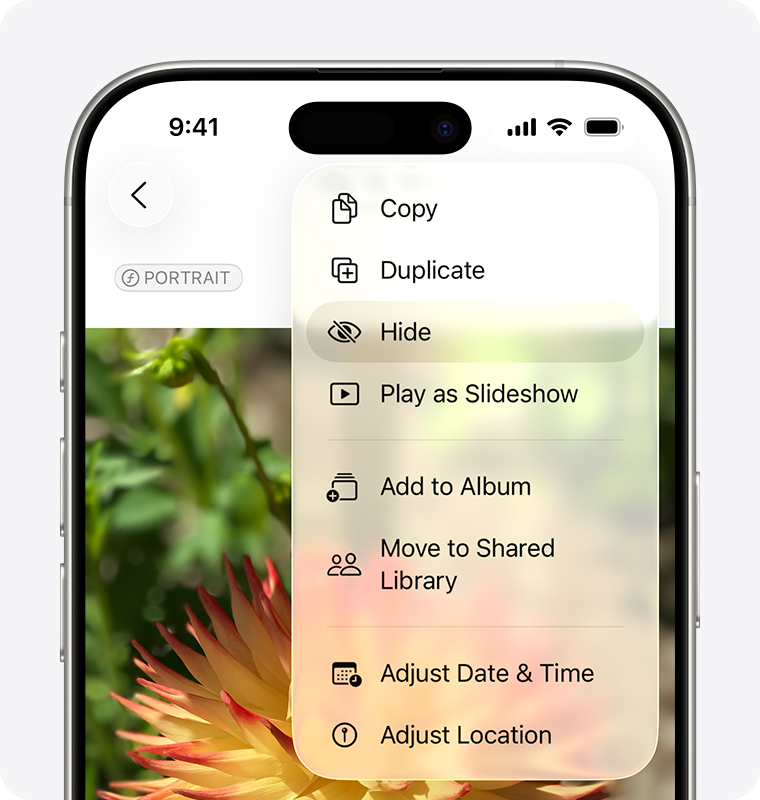
If privacy is the main worry, the Hidden album handles a lot of it. Hidden photos disappear from your library, other albums and widgets, and the album is locked with Face ID by default. You can also ask Photos to feature a day or person less in Memories.
Where a dedicated workflow can help
Your progress photos mix with everything else
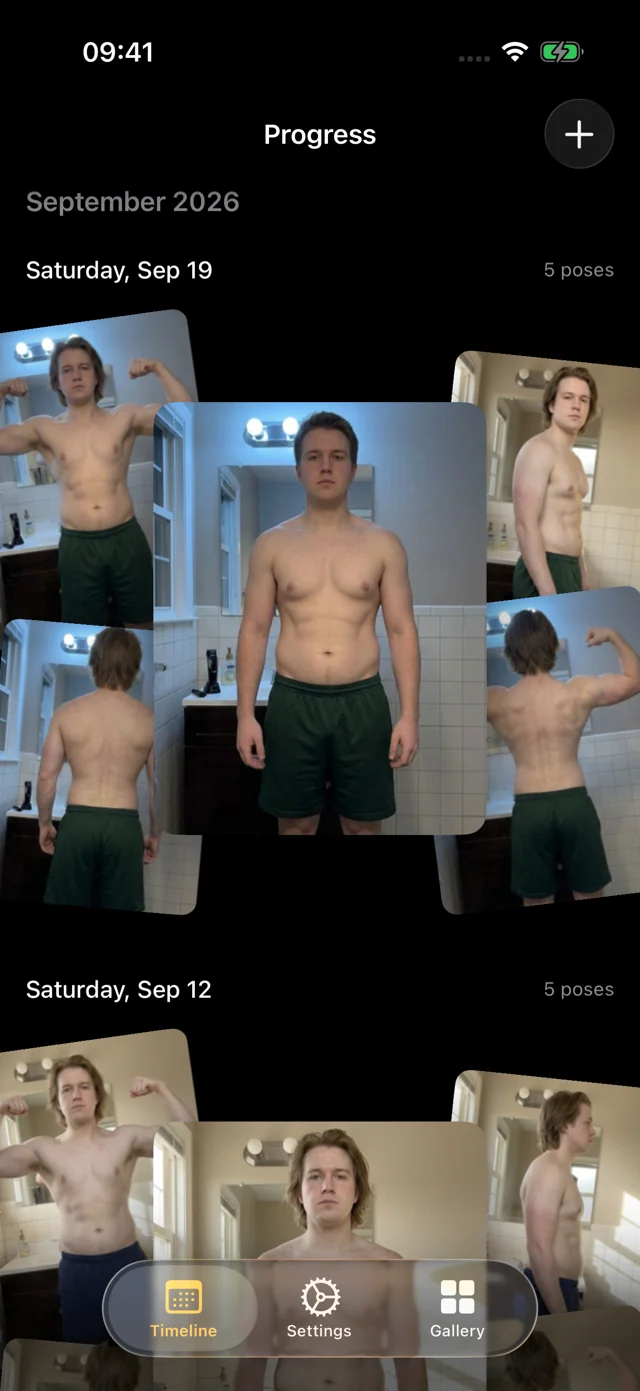
Shirtless photos sit between screenshots, receipts and family pictures. Hand your phone to someone to show them a vacation photo and one swipe too far shows more than you meant to. Unless you hide each photo, Photos may also build Memories and featured photos from them.
Framing drifts
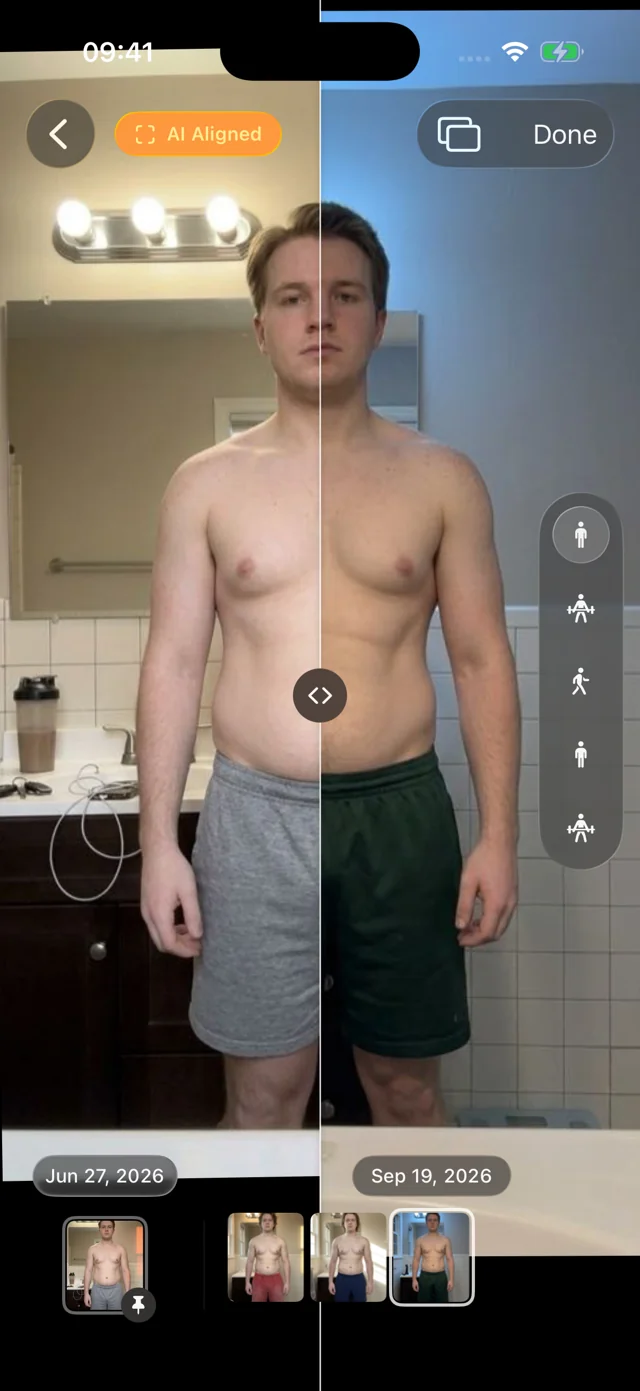
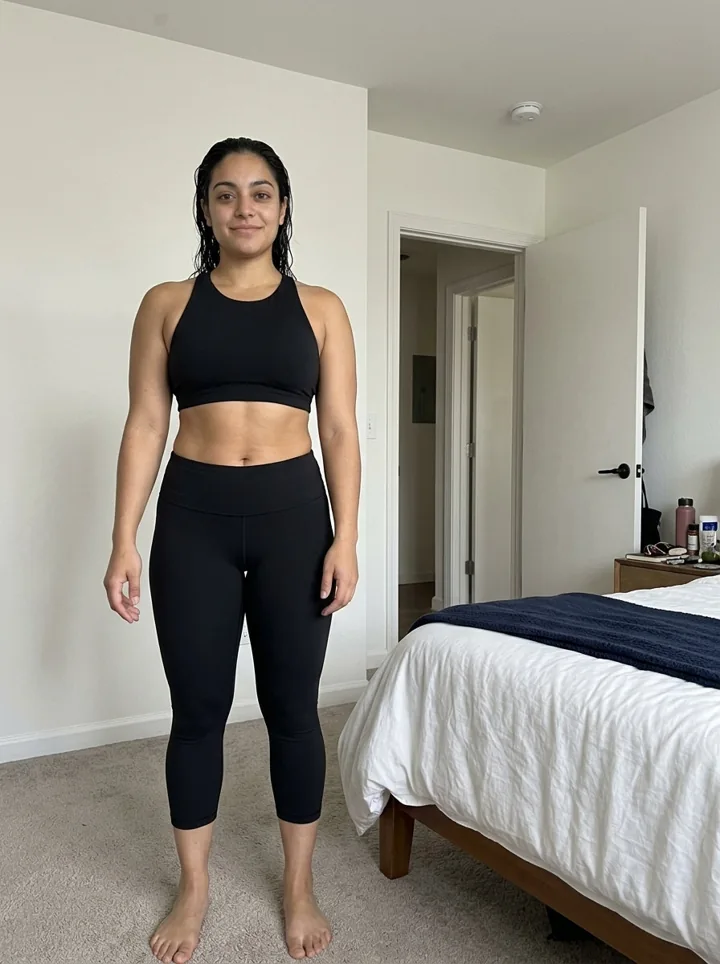
Even with a careful setup, every photo drifts: a step closer, the phone a little lower, a slightly different angle. Two photos that don't match make it hard to tell real change from a camera change. Here's the difference alignment makes. Drag the divider, then turn AI aligned off to see the photos as they were shot, the way they'd sit in your camera roll.
Comparing two dates is fiddly
Photos shows one image at a time. To compare week 1 with week 12 you scroll back months, then flick between them, or build a collage in another app. Our before and after photo maker handles a one-off side-by-side, but doing it every month gets old.
What a dedicated app adds
Progress was built for exactly this. Your photos live in the app, out of your camera roll, and you can lock it with Face ID, Touch ID or a passcode. There's no account. Your personal data (photos, measurements, health data) never leaves your iPhone. We only collect anonymous usage data to improve the app, and you can turn it off in Settings.
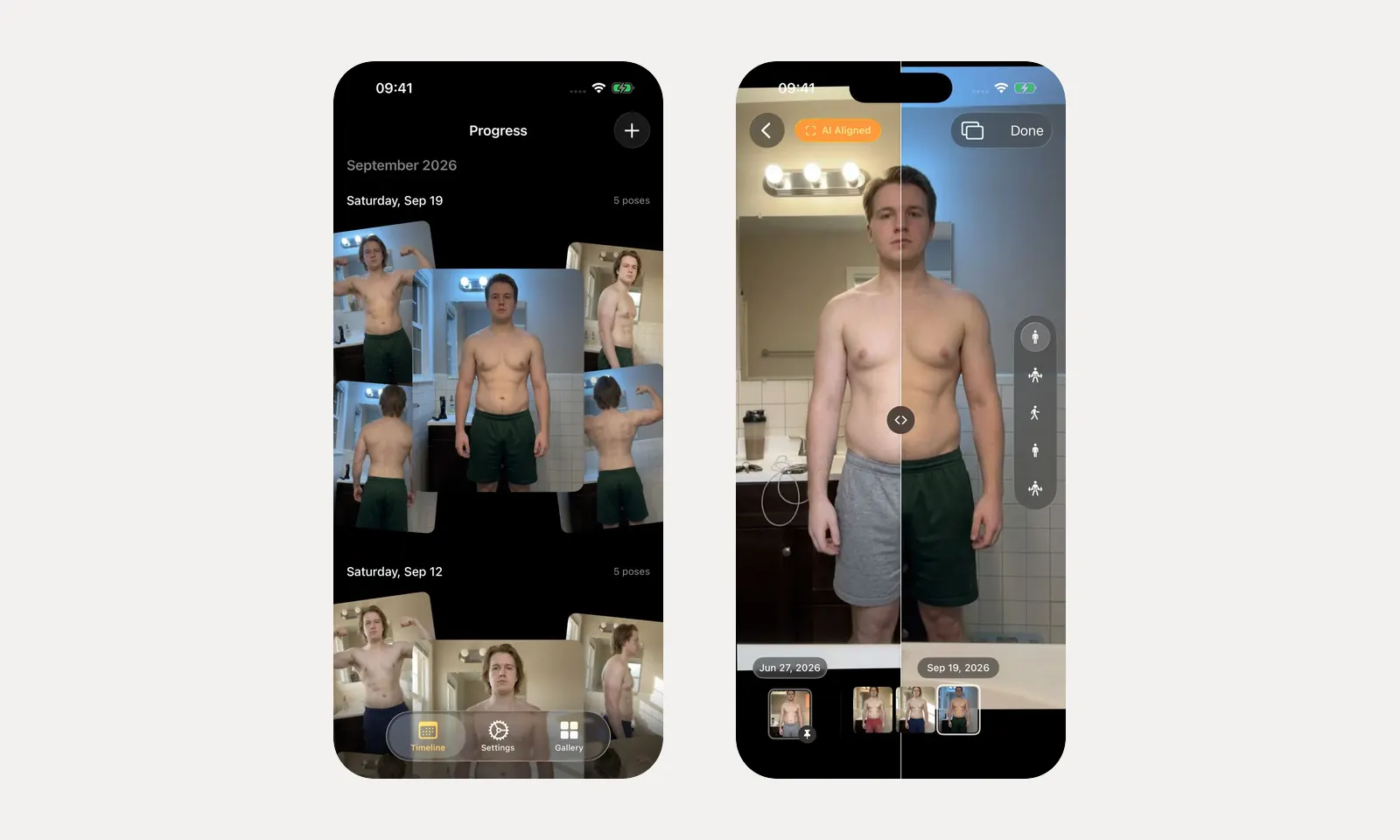
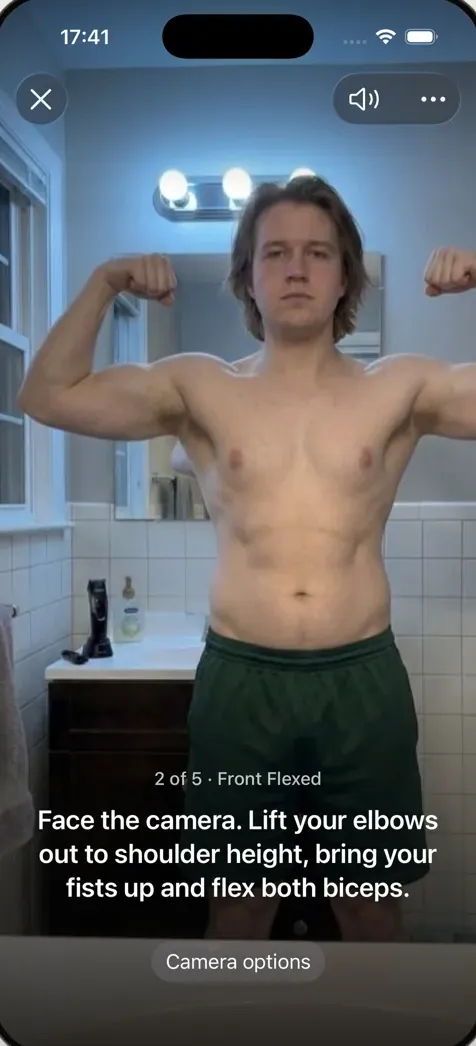
- No more timer dash. Instead of setting a ten-second timer and running into place, prop the phone on a shelf and step back. Progress watches through the camera and talks you into each of the five standard poses: "Turn to your right until your left side faces the camera," "Move a little closer." When you're in place and still, it takes the photo itself. About a minute for the whole set.
- Every photo lines up. Progress's AI aligns each photo after it's taken, so a step closer or a lower shelf doesn't show up as change. Your originals stay untouched.
- Compare in a gesture. Slide a divider between any two dates, swap full-screen, or pin a reference date and scrub through everything since. Photos appear instantly and the filmstrip moves with light haptics.
- Numbers alongside. Log weight and body-fat percentage with each session, typed or read from Apple Health.
- Keep a copy in Photos if you like. New captures can be saved to Apple Photos, straight to the Hidden album if you prefer, and Export Data gives you everything.
Moving photos out of your camera roll
Already have a year of progress photos in Photos? You don't have to start over.
- Import from Photos or Files. Select a year of progress photos at once. Our own pose model, trained for progress photos and shipped in the app, recognizes front, side and back, so there's nothing to label. Progress groups them into dated sessions and aligns them like new captures.
- Glance over the sessions. Fix any date or pose that's off before saving.
- Decide what stays in Photos. Once the import looks right, hide or delete the originals in Photos if you no longer want them in your library. Keep a backup until you're sure.
- Shoot the next session in Progress. It lines up with everything you imported.
Looking at other apps too? Our roundup of the best progress photo apps covers dedicated photo apps and body journals, and Progress vs Happy Scale covers pairing photos with a weight-trend app.
FAQ
Where is the safest place to keep progress photos on iPhone?
Somewhere separate from your everyday library and locked behind Face ID. Apple's Hidden album does both and is locked by default on iOS 16 and later. A dedicated app like Progress also keeps photos out of your camera roll, with an optional app lock, and adds alignment and comparison.
Do hidden photos still back up to iCloud?
Yes. With iCloud Photos on, hidden photos stay in your synced library and stay hidden on your other devices. Sync isn't a backup, though: keep an exported copy too.
Can I hide progress photos from Memories?
Hiding them is the surest way: hidden photos don't appear anywhere else in Photos. For photos you haven't hidden, you can ask Photos to feature a day, place or person less in Memories and featured photos.
Should I delete progress photos from my camera roll after importing them into an app?
Only once the import looks right and you have a backup you trust. Progress keeps its library on your device; until iCloud sync arrives, use Export Data or keep copies in Photos (the Hidden album works well).